|
To install the toolbar, click on the button below.

Internet Explorer
In Internet Explorer (version 6, 7, 8), you will receive a prompt to either save the file or run the file as below.
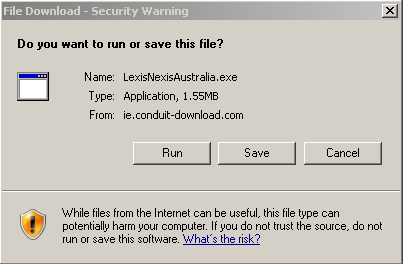
You can choose either to run or to save the file. If you choose run, it will automatically install the toolbar. If you choose save, it will save the installation file to the location you specify. Once saved, you can double-click on the file to install the toolbar. Once installed, the toolbar will look like below.

Please note that admin privilege is required to install the toolbar in Internet Explorer. If you do not have admin privilege to the system, please contact your system administrator.
Mozilla Firefox
To install the toolbar on Mozilla Firefox, click on the "Free Download" button. You will get a prompt similar to the one below.

Click on the allow button and continue. You will receive a prompt similar to the one below. Click on the "Install" button when the button becomes active.
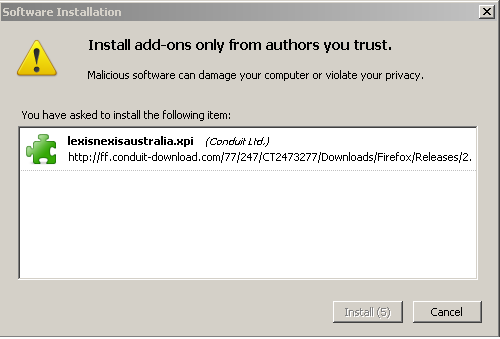
Once installed, the following prompt will appear.
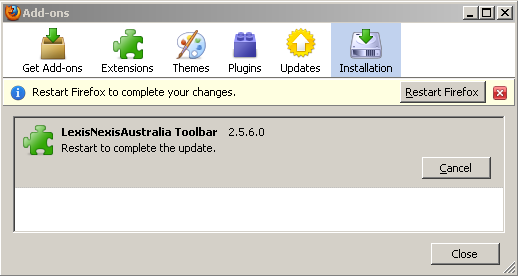
Restart FireFox and the toolbar will appear as below.

|
Toolbar - Installation Guide
- 1 800 772 772
- Contact Us
-
 Feedback
Copyright ©
LexisNexis. All rights reserved.