|
Your LexisNexis Toolbar looks like: 
From left to right it has:
LexisNexis Logo When you click on the dropdown box next to the LexisNexis Logo, the following menu will appear: 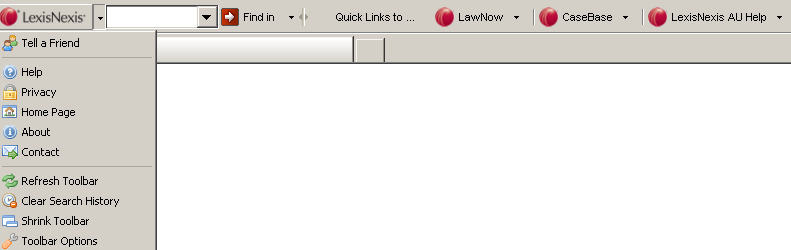
This menu provides links to common pages, the option to 'Refresh Toolbar' and 'Toolbar Options' which allows you to customise the toolbar to suit your own needs.
Quick Search using 'Find In' To use this function you first type your search terms in the search box to the left of Find in, e.g. 'quantum meruit'. Click on the dropdown box next to Find in to open the menu below: 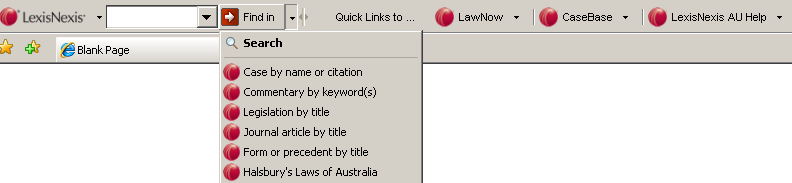
This is the menu of LexisNexis products you can choose to use for your search. Simply click on your chosen product, e.g. Commentary by keyword(s), and your search begins. Alternatively, you can search in Google by clicking on the 'Search' button.
Searching in LawNow This first quick link allows you to search for legislation in LawNow. Clicking on the dropdown box to the right of the LawNow button opens the following menu: 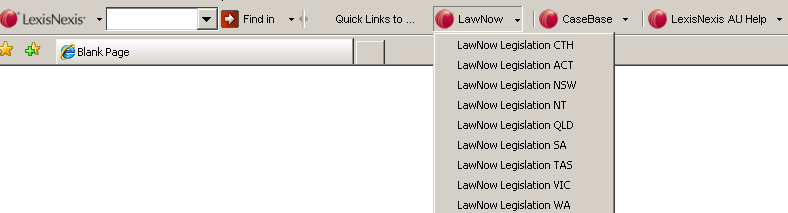 To run your search in a particular jurisdiction, e.g. LawNow Legislation QLD, simply click on that link. This then opens a LawNow search form which will search in that jurisdiction only.
Searching in CaseBase This quick links allows you to search CaseBase. Clicking on the dropdown box to the right of the CaseBase button opens the following menu: 
To run your search in Case, Journals or Journal and Articles, e.g. CaseBase Cases, simply click on that link. This then opens the CaseBase search form for you to use.
LexisNexis AU Help To open your Help menu, click on the dropdown box the right of LexisNexis AU Help. 
This menu provides you with links to the training website, several tutorials on searching and some quick reference guides to provide optimum value from key LexisNexis products. |
Toolbar - How To

- 1 800 772 772
- Contact Us
-
 Feedback
Copyright ©
LexisNexis. All rights reserved.